How do you choose pictures for a child’s visual routine?
By Rachel Hassett ·
Last reviewed
Choose clear pictures for your child’s visual routine, know when to use a real photo, and avoid the little details that can make a task confusing.
The best picture for a child’s visual routine is the one they understand quickly.
That might be a simple picture of a toothbrush for “brush teeth”. Or it might be a photo of their actual school bag because that is what makes sense to them.
You don’t need the prettiest set of pictures. You need pictures that help your child work out what comes next.
A quick checklist for choosing each picture
Before you add a picture to a routine, check:
- Is there one clear object or action?
- Does the picture match the words on the task?
- Will it still be clear on the device your child uses?
- Could a photo of the real item make more sense?
- Have you removed private or distracting details?
If your child keeps asking what a picture means, that is useful feedback. Try a different one. If the routine is still being ignored, check the other reasons a child may stop using a chart.
Start with one clear subject
Busy pictures can make the important bit harder to spot. Start with one recognisable object:
- a toothbrush for brushing teeth
- shoes for putting shoes on
- a lunchbox for packing or collecting lunch
- a school bag for packing the bag
- pyjamas for getting ready for bed
Make sure the task name and picture give the same clue. A card that says “pack school bag” with a picture of a hat asks your child to connect two different ideas.
Example screen using fictional family data.
Keep familiar pictures consistent
Once your child knows what a picture means, use it again for the same job.
If “brush teeth” is part of both the morning and bedtime routines, the same picture can appear in both. You don’t need to swap it simply to make the board look different.
When a real photo may work better
A general picture can be too vague for a very specific job. This is where a familiar photo can help.
You might use a photo of your child’s:
- school bag
- daycare hat
- reader folder
- sports uniform
- shoe basket or the place their bag belongs
Crop the photo so the important item is easy to see. Before you upload it, check the background for school names, addresses, labels, paperwork or other children.
All Set does not automatically check uploaded photos for private information, so that quick look needs to happen before you add the image.
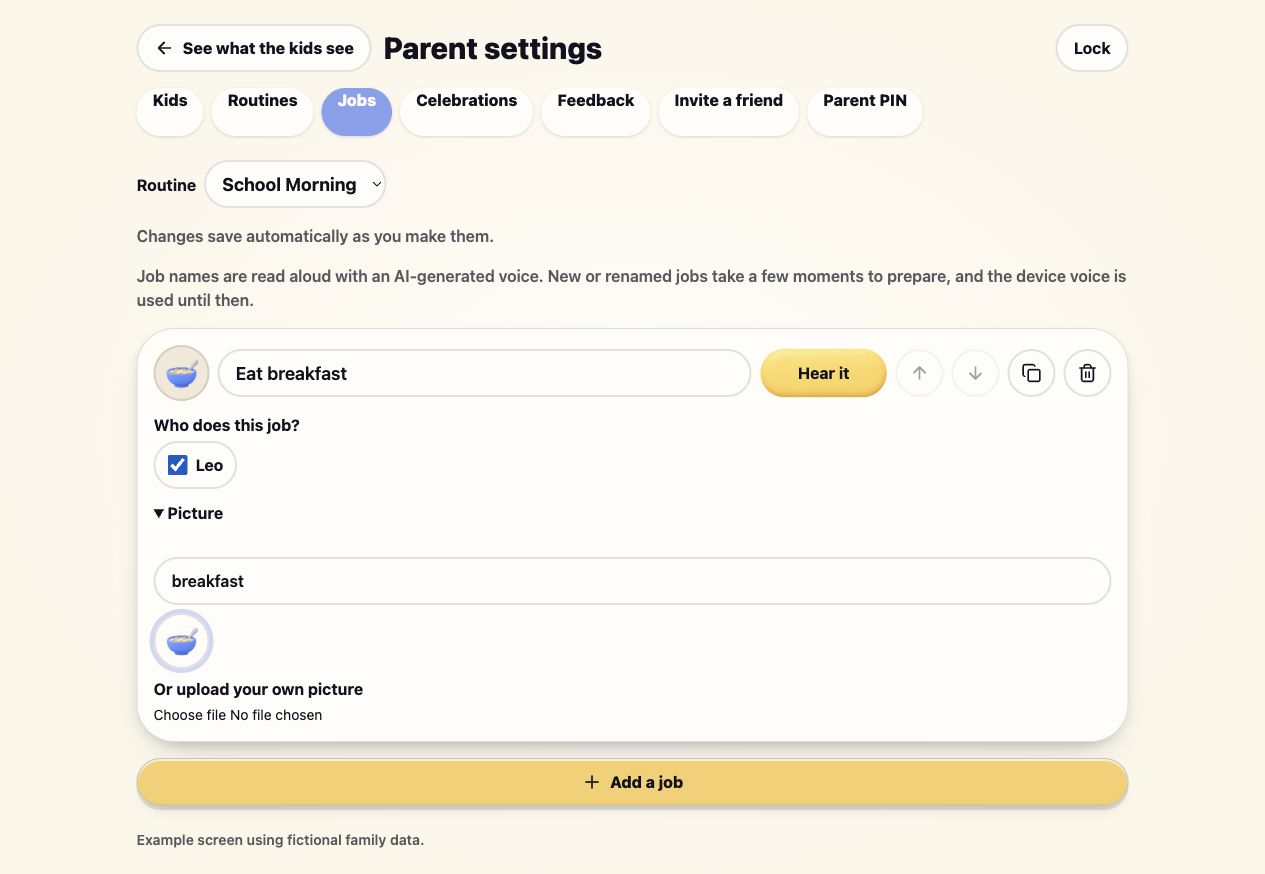
All Set has a built-in picture library. You can also upload your own image. If a picture is missing, you can ask for it through Parent settings > Feedback.
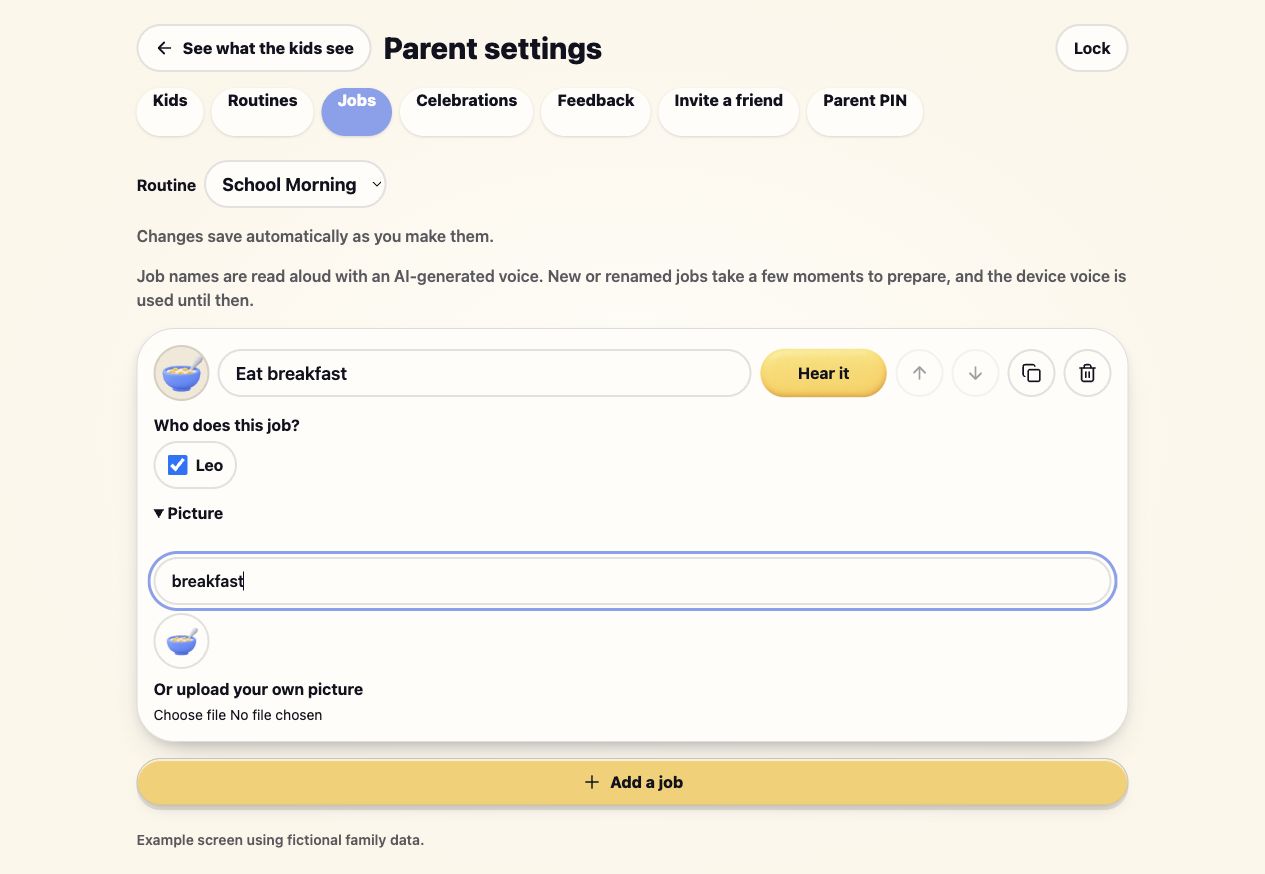
Example custom image in the task editor. Child shown is fictional.
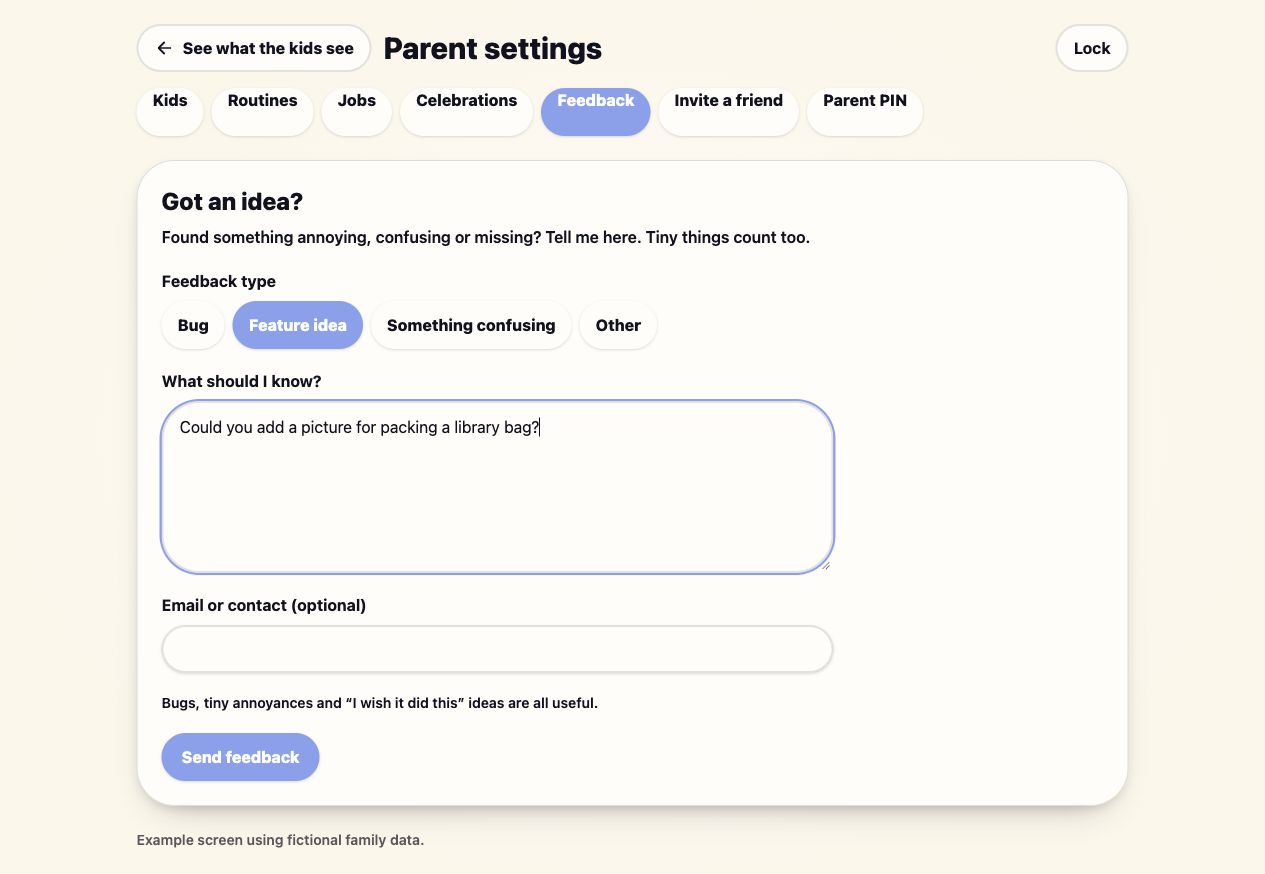
Example request for a missing picture, prepared in the demo. This message was not sent.
What if two jobs look almost the same?
Make the difference visible in the picture or in the task name.
“Pack school bag” and “put bag by the door” may need different pictures. A photo of the bag’s usual spot might be clearer for the second task.
“Get dressed” and “put on uniform” could use the same picture if they mean the same thing in your home. If they are separate jobs, choose pictures that show the difference.
Should the picture show the object or the action?
Use whichever your child recognises more easily.
A toothbrush may be enough for “brush teeth”. Clothes laid out on the bed may work better for “get dressed”. A photo of the shoe basket may be clearer for “put shoes away” than a general picture of shoes.
There isn’t one correct style for every task. The useful question is: can your child connect this picture to the job?
Do children need written labels too?
Written labels give parents another reference point, but a child does not need to be able to read the label to use All Set.
Each task has a Hear it button. Your child can see the picture, hear the instruction and tick the job off when it is done.
Read more about how children can use All Set before they can read.
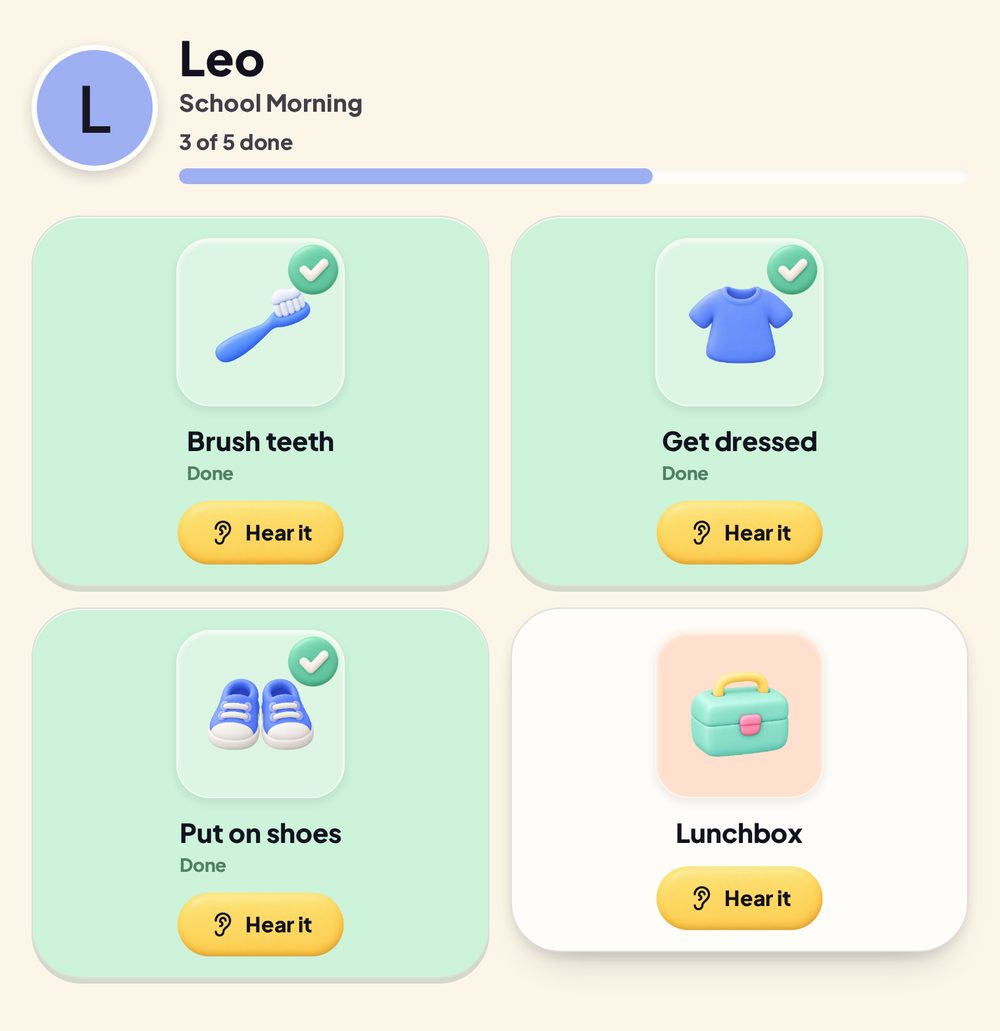
Example child view. Child shown is fictional.
How many pictures do you need?
Start with one routine and the jobs that happen in it. You do not need to find a picture for every possible job before you begin.
For a school morning, that might mean getting dressed, eating breakfast, brushing teeth, packing the school bag and putting on shoes. The school-morning routine example gives you a starting list to adapt. Add or change pictures as you see what your child recognises.
Check the pictures on the device your child will use
A picture that is obvious on a large computer screen can be harder to understand on a phone or tablet.
Open the routine on the actual device and check that:
- the main object is still easy to see
- similar cards look different enough
- the task name matches the picture
- your child knows what the picture means
You can change a picture later. The first version only needs to be clear enough to try.
See how All Set works and check the supported device information.